

WP PowerSuite Review: Is This Modular WordPress Plugin Worth It?

A WordPress site can collect plugins one small decision at a time. You add one for email, another for redirects, then a few more to tidy up the dashboard. Each solves a problem. Eventually, though, someone has to keep track of them all.

WP PowerSuite is aimed at that situation. It brings everyday tools into a shared dashboard, with a free base plugin and an optional Pro add-on. Our take: it’s worth a look if maintaining those separate utilities has become a chore. The appeal is easier administration; whether it also saves money or improves performance depends on what you’re replacing.

About this review: we researched the public documentation and WordPress.org listing on 20 October 2026. We haven’t installed or benchmarked WP PowerSuite, so this is a documentation-based assessment, not a hands-on test of speed, reliability or support.

What is WP PowerSuite?

WP PowerSuite is a modular WordPress toolkit covering administration, content, media, login, security, SEO utilities and site tools. The WordPress.org product is called PowerSuite Modular Admin Toolkit. Its listing describes 155 modules across the free and paid packages: 90 free modules and 65 additional Pro modules. The free tools require no PowerSuite account or trial; Pro is installed alongside the base plugin. WordPress.org listing.

Think of a module as a tool you can switch on when you need it. You might enable a dashboard tweak today and leave the image tools untouched. Having them available doesn’t mean you have to use them.

That flexibility is appealing, especially when someone else will eventually maintain the site. Still, we’d start with a list of jobs to be done. If the suite handles your five recurring tasks well, that’s more useful than a long list of features you’ll never open.

WP PowerSuite at a glance

Question Short answer
What kind of product is it? A modular toolkit for WordPress administration and site functions.
Is there a free version? Yes. The directory package lists 90 free modules.
How does Pro work? A separate add-on extends the free plugin; keep both active.
Who should shortlist it? Site owners, freelancers and agencies consolidating routine utilities.
What is the main trade-off? Less configuration spread, but more functions depend on one product family.
Does it guarantee better speed? No. The outcome needs measurement on your own site.

Free vs Pro: which WP PowerSuite modules do you need?
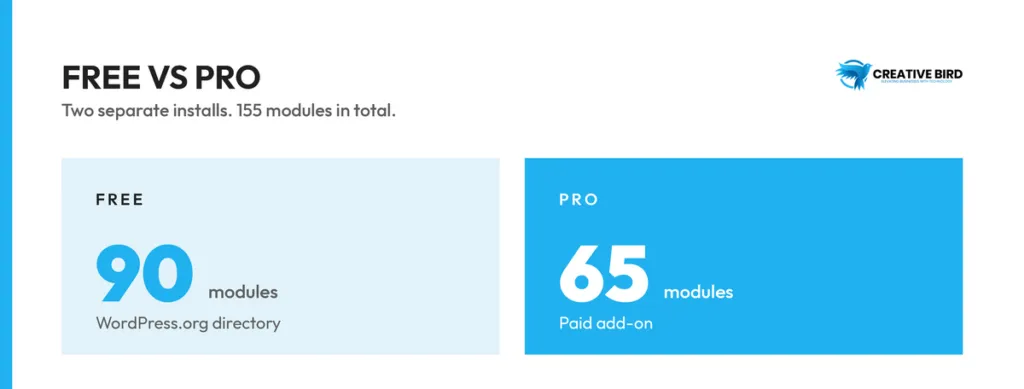
WP PowerSuite free plugin with 90 modules compared to the Pro add-on with 65 modules

There’s a distinction worth clearing up before comparing features. The official documentation describes a free plugin and a separate paid extension. When the sales pages say all modules are included on every plan, they’re referring to paid plans. It doesn’t mean the entire library is free.

For a small brochure website, email delivery, a tidier admin screen and a few publishing shortcuts may cover most of the wish list. A client site with several editors or a busy store will need a closer look at access, recovery and reporting. Start there, then check which package covers the work.

Area Examples to investigate Decision to make
Admin cleanup Dashboard Columns, Show IDs, Custom Admin CSS; Pro Admin Columns Customizer Will the client understand the interface more easily?
Login security Pro Two-Factor Authentication, Limit Login Attempts and Change Login URL Can users recover access, and does the setup fit existing protection?
Content structure Pro Custom Fields and Custom Post Type Builder Can the current content model be recreated without losing functionality?
SEO utilities Breadcrumbs, Robots.txt Manager; Pro Redirect Manager and Broken Link Checker Which tool should own each overlapping function?

These examples come from the official module index. Availability can change, so confirm the exact module and installed version before committing to a migration.

Features that deserve a closer look

SMTP and email delivery

The free Email Delivery module supports SMTP and provider connections, including documented API or OAuth options. Its guide describes primary and fallback connections, sender configuration and test messages; Email Logs and Email Reports are Pro companions. Email Delivery documentation.

Email is one of the first things we’d check. Send an enquiry through the actual contact form, wait for the notification and hit reply. Does it reach the right person? Does the reply go back to the visitor? Then try a password reset and, for a store, an order confirmation. A green connection test is useful, but it doesn’t answer all of those questions.

If your current SMTP plugin already does this reliably, there’s no rush to replace it. The switch needs to make maintenance easier or solve something the existing setup can’t. Either way, allow for any charges from the email provider, and keep just one plugin in charge of mail delivery.

Backup and restore

The Pro Backup & Restore module documents scheduled local backups, downloadable archives, retention controls and selective restoration. The vendor explicitly says that local snapshots need an independent off-site strategy for complete server or storage failure. Its Multisite coverage is scoped rather than a complete backup of every site in a network. Backup & Restore module.

We can see the appeal of having a restore point close at hand before an update. The more revealing test comes afterwards: can you recover the site from it? Restore a copy somewhere disposable, then open the pages, check the media and sign in. Note how long it takes and who would do the work if the live dashboard stopped loading.

For a busy store, put a number on the data you can afford to lose. An hour of orders and a day of orders are very different problems. Choose the backup schedule and recovery tools around that answer.

Redirects and SEO maintenance

Redirect Manager is a Pro module with exact, wildcard and regular-expression matching, multiple redirect status codes, conditions and CSV import/export. Those controls make it relevant to URL changes and website migrations. Redirect Manager.

Suppose you’re moving a service page to a new URL. A straightforward redirect may be all you need. Moving a whole blog section calls for more care: export the old rules, try a few representative URLs and check where each one ends up. Include links with query parameters, as well as any pattern-based rules.

For SEO, we’d keep the division of responsibilities clear. Decide which tool handles redirects and which handles the rest of your search setup. There’s little value in replacing a dedicated plugin if you then have to work around missing features or untangle conflicting settings.

WebP conversion and media management

The Pro WebP Conversion module changes eligible JPEG and PNG attachments into WebP files. It is an attachment replacement workflow, not simply an extra image format served alongside the original. The documentation offers original-file retention and says not to enable WebP Conversion together with AVIF Conversion. WebP Conversion.

It’s a detail we’d want to know before switching image tools. Keep the originals while you try it, and check more than a single blog image. Look at transparent logos, product galleries, download links and any feed that uses image URLs. File size matters, but so does whether the image still looks right and appears everywhere it should.

Forms and AI-assisted workflows

The AI Forms guide describes a builder, saved entries and notifications, with premium capabilities such as conditional logic and AI-assisted generation. It also points users with complex multi-page payment forms toward other tools. Because packaging labels differ across public pages, check the current installed package before relying on a specific free or paid form capability. AI Forms guide.

A contact form doesn’t need to be complicated to be useful. It does need to work on a phone, explain errors clearly and deliver the enquiry. Fill it out as a visitor would, including a few mistakes, and follow the submission through to the inbox. If you use the AI builder, read through its choices before publishing. You may not need every field it suggests.

AI alt text deserves the same attention. Check that the description fits the image and what it’s doing on that particular page. Adding keywords to an inaccurate description won’t help the person trying to understand it.

WP PowerSuite pricing: annual vs lifetime
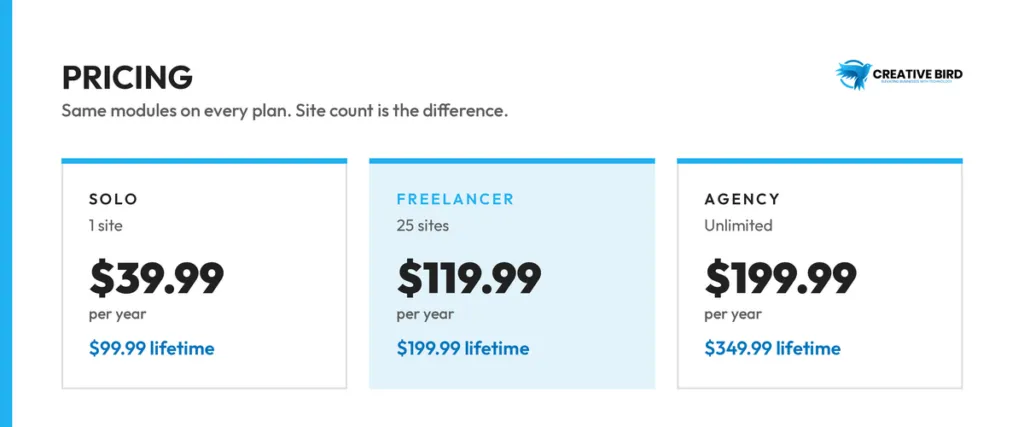
Here’s what the official pricing page displayed when we checked it. These are US-dollar offers, so confirm the checkout price and renewal terms before buying.

WP PowerSuite pricing: Solo, Freelancer and Agency plans with annual and lifetime options
Plan Site allowance Displayed annual offer Displayed lifetime offer
Solo 1 site $39.99 $99.99
Freelancer 25 sites $119.99 $199.99
Agency Unlimited sites $199.99 $349.99

The vendor advertises a 14-day refund period and says lifetime updates and support apply while the product remains actively developed. The pricing FAQ says an expired annual license leaves the installed version running while updates and support stop. Confirm the final purchase terms and any module-specific licensing conditions before paying.

One detail needs a clearer answer from the vendor: white-label access. The pricing cards list it across tiers, but the homepage FAQ says it’s exclusive to Agency. If client branding is part of your buying decision, get the entitlement confirmed in writing.

How to calculate whether consolidation saves money

Start with your own renewal bills. Which subscriptions could you actually cancel after switching? Leave out free plugins you’re happy with and paid tools you’d still need. That gives you a much more useful comparison than adding up the price of everything the suite might replace.

Estimated first-year saving = avoidable annual subscriptions − suite cost − new service costs − migration and testing effort.

Say you could cancel $180 in annual subscriptions. Against the displayed $39.99 Solo offer, that’s $140.01 saved on licenses. But if moving everything takes three hours at $50 an hour, you’ve spent $9.99 more in the first year, before provider fees. This is an illustration, not a customer result, but it shows why the migration deserves a place in the calculation.

We’d lean towards annual licensing while the fit is uncertain. Lifetime becomes more interesting once you’ve used the relevant tools and know you’d keep them. You’re still relying on the product’s future development and support.

Does WP PowerSuite improve performance or reduce plugin bloat?
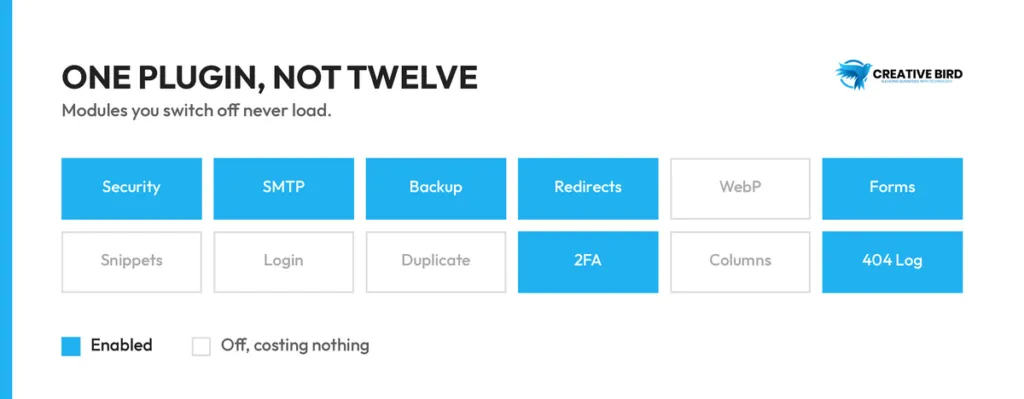
Twelve separate WordPress plugins compared with one modular plugin where unused modules stay switched off

It may simplify your plugin stack, but a shorter plugin list does not establish a faster website. The WordPress.org listing makes the useful distinction that a disabled module skips its feature logic while the shared core still loads. directory performance FAQ.

The fairest test is to do the same work with both setups. Use the same hosting, theme, cache settings and pages. If you remove a feature along the way, note it; otherwise, you may credit the suite for a speed improvement that came from doing less.

Measure What it helps you assess
Repeated page-load tests Whether typical visitor pages improved under comparable conditions.
Database work and server response Whether enabled functionality adds expensive processing.
CSS and JavaScript requests Whether assets load on pages that do not need them.
Admin task completion Whether publishing, editing and configuration feel simpler.
Background jobs Whether backups, logs or conversion tasks create resource pressure.

Run the checks several times rather than keeping the best-looking result. Include pages a cache won’t usually rescue, such as account screens or checkout. And spend some time in the dashboard. If everyday editing becomes simpler, that’s a useful benefit even if page-load times barely change.

Security, compatibility and maintenance trade-offs

The suite advertises security features including 2FA, login limits and endpoint hardening. Those are useful categories to evaluate, but they do not demonstrate that the product replaces every capability of a specialist security plugin. The vendor’s own comparison acknowledges that some specialist tools remain appropriate. vendor comparison.

There’s a practical trade-off here. Dealing with fewer vendors can make maintenance easier, but several parts of your site will then depend on the same product. Before making it central to a client setup, write down what would stop working if you had to disable it and how you’d roll back.

Take login changes slowly. Try both a regular user and an administrator, and make sure the recovery route works before tightening access. The same care applies to XML-RPC and REST API settings: check what your integrations use before disabling an endpoint.

Security headers also need a little context. After changing them, check embedded content, external scripts and payment flows. It’s easy to overlook a blocked service when the homepage still appears normal.

For client sites, leave a short record of connected services: who owns the account, where the credentials are managed and who gets the bill. Include any retention settings for form entries, email records and activity logs. Those details are easy to forget until someone needs to investigate a problem or take over the site.

WP PowerSuite alternatives worth considering

A relevant modular alternative is Admin and Site Enhancements (ASE), whose WordPress.org listing covers admin and site utilities with optional Pro functionality. Compare the exact tasks you need in both products and evaluate their documentation and support histories. ASE directory listing.

Approach When to consider it Trade-off to evaluate
WP PowerSuite Several routine utilities could share one interface. Migration effort, required integrations and shared dependency.
Another modular toolkit such as ASE You want to compare similar administration workflows. Exact module behavior and free/paid boundaries.
A selected specialist plugin stack One or more functions have demanding requirements. More separate settings and update relationships.
Your existing configuration It is reliable, documented and economical. Whether consolidation offers enough benefit to justify change.

You can also stop halfway. Using the toolkit for small admin jobs while keeping a trusted backup, security or SEO plugin is a perfectly reasonable result. There’s no prize for getting the plugin count as low as possible.

How to install and evaluate WP PowerSuite safely
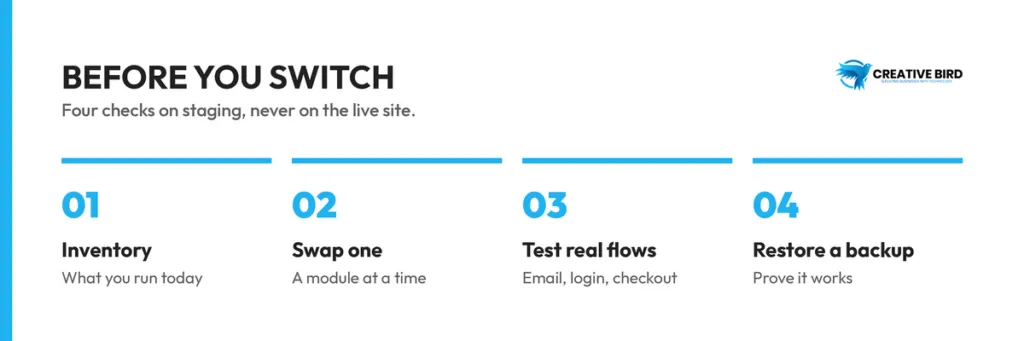
The installation model is a free base plugin plus an optional Pro extension. Keep the base installed when adding Pro. Check the current package requirements against your hosting environment; public pages differ on the minimum WordPress version, while PHP 8.1 or newer is consistently referenced in the sources reviewed. installation guide.
Eight-step workflow for evaluating WP PowerSuite safely, from inventory through to documentation
  1. Inventory your current stack. Write down each function, its settings, integrations and data exports. Include small snippets that may duplicate a module.
  2. Create a staging copy and recovery point. Keep a way to return to the existing configuration before changing live behavior.
  3. Install the base and any required Pro package. Confirm compatibility and licensing before configuring paid functions.
  4. Enable one module at a time. Start with a low-impact admin utility. Avoid toggling a whole category on at once.
  5. Assign one owner per function. Move settings deliberately and disable overlapping behavior only after checking the replacement.
  6. Run real workflow checks. Test enquiries, login, password reset, images, redirects and any store transactions relevant to the site.
  7. Compare performance and recovery. Check normal pages, background tasks and a test restoration.
  8. Document the accepted configuration. Record enabled modules, credentials ownership and rollback steps before deployment.

By the end, you should be able to say what improved: fewer bills, less time in settings, a cleaner handover, or perhaps nothing substantial. For an agency, try the setup on a few different kinds of client site before making it your default.

Pros and cons of WP PowerSuite

Potential advantages Limitations and open questions
A broad free toolkit provides a starting point for evaluation. Paid packaging and some public claims require careful checking.
A shared interface can simplify routine administration. Moving working configurations consumes time and needs verification.
Selective modules support a focused setup. Enabled features and the shared core still need performance testing.
Paid site allowances may suit freelancers and agencies. White-label eligibility is inconsistent across public pages.
Several utility categories can share a product family. Specialist requirements and independent off-site recovery remain important.

Frequently asked questions

Our verdict: who should use WP PowerSuite?

WP PowerSuite is most interesting for people who are tired of managing a separate plugin for every small WordPress task. A shared dashboard and a broad free starting point give it a sensible place on the shortlist. The documentation also contains details worth reading before you buy, particularly around backup storage, image conversion and paid access.

Our advice is to pick a handful of jobs your current setup makes awkward and try those first. If the suite handles them well, expand gradually. If your existing tools already work comfortably together, there may be little reason to move.

For a business site, we’d judge success by how easily someone can maintain it and how reliably customers can use it. That’s a stronger reason to choose WP PowerSuite than the module count alone.

For more on planning and maintaining a business website, browse the Creative Bird Blog.